Online Portal Self Help Guide
Revenue Recovery Online Portal will give you the ability to set up payment reminders for already established payment plans, set up to receive paperless billing via email and also the ability to view previous statements, payment history and a link to make your payments. Payment arrangements cannot be set online, you will need to contact Revenue Recovery directly at (916) 875-7589 to set up payment arrangements.
Register to Create a Profile
- Register and create a profile before you can login.
- If you have a current profile for My Utilities, the Username or email address and password may be used to login to the Revenue Recovery Portal
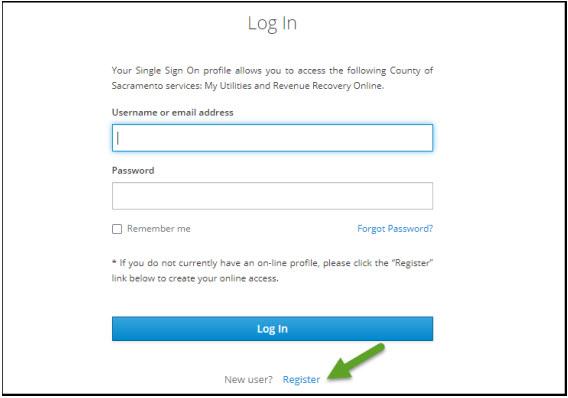
- To create a profile, click the register button at the bottom of the screen
- A username will need to be created
- Complete all the fields then select the ‘Register’ Button
- Once registration is complete you can log in with the Username and Password created
Linking Accounts
- In order to allow access to the account, your DRR account number must be linked to the profile by entering the account number, last 4 digits of your SSN, and Date of Birth (mm/yyyy) associated to the account.
If you are unable to link your account, contact Revenue Recovery at (916)875-7589
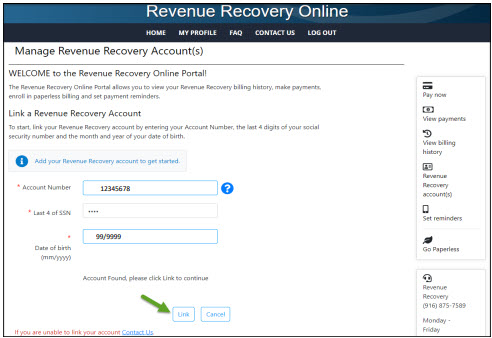
- After account number, last 4 of SSN and DOB (mm/yyyy) has been entered, a message appears saying ‘Account Found, please click link to continue’.
- After clicking Link, a window appears asking to authorize linking account to the profile. Click ‘Submit’ to Continue.
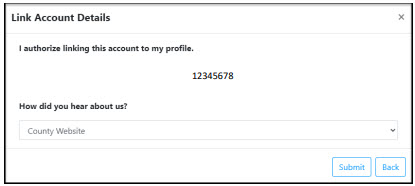
- A confirmation email is sent to the email address on file confirming that the account has been linked to the profile.
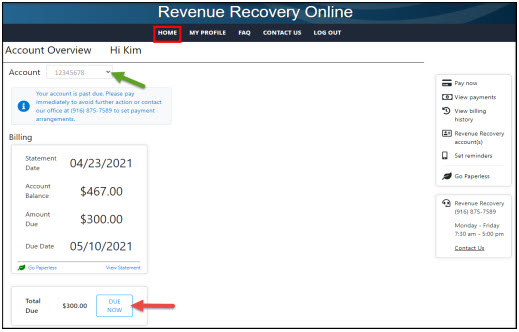
- Once the account has been linked, select your account number and you will be redirected to the home page.
- If you have more than one account linked to your profile, use the drop down box in the top left hand corner to navigate between the accounts.
- Only accounts that share the same SSN and Date of Birth can be linked to the same profile.
Home Screen
- The home screen will show the information from the last statement date, total account balance, amount due and due date. Click the ‘DUE NOW’ to make a payment or to see payment options.
- On the right hand corner of the Home screen are the following options:
- Pay now
- View Payments
- View billing history
- Revenue Recovery account(s)
- Set reminders
- Go Paperless
- Revenue Recovery Contact Information
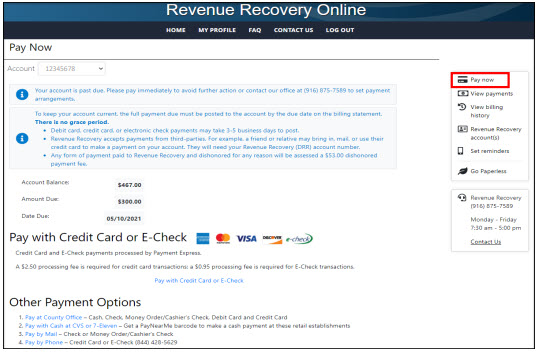
Pay Now
- Confirm the account number you would like to make a payment on
- Click ‘Pay with Credit Card or E-Check’ to make a payment online
- Confirm that you will be redirected to Payment Express by clicking ‘Continue’
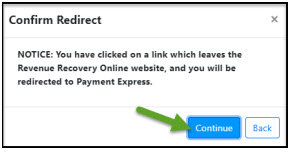
- A new window opens up to Payment Express where the account number and name is already populated. Click ‘Pay Now’ to make a payment.
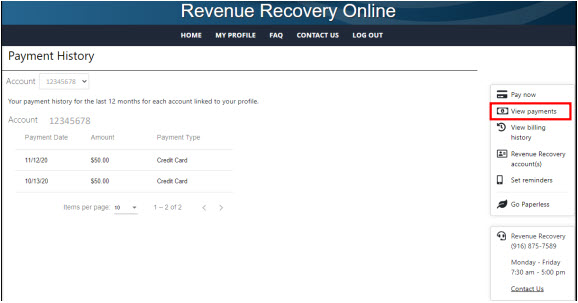
View Payments
- Shows the last 10 payments received within the last 12 months only
- Selection can be made at the bottom selecting to show 5 or 10 items per page
View Billing History
- Shows statements and billing notices for the last 12 months only
- Only shows 10 items per page
- Shows date of the statement
- Due date of the statement
- Amount due of the statement
- Allows to view a copy of any statement by clicking the red Adobe icon
- Opens the statement in a new window, gives options to print or download page
- Populates with the last date statement was viewed
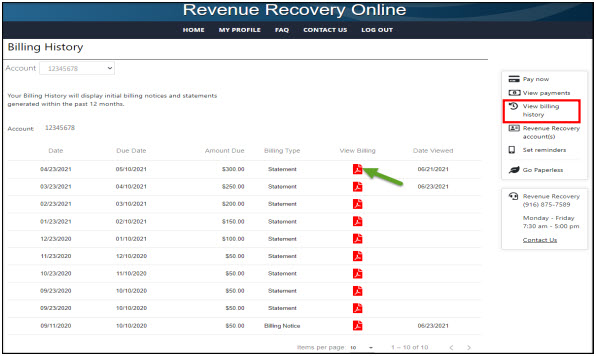
Statements can only be viewed after they are generated. When enrolled in paperless billing an email is sent when the statement is available to be viewed
Revenue Recovery Account(s)
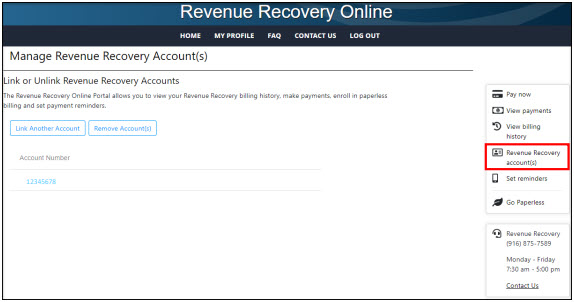
- Manage accounts linked to profile
- Link additional accounts or Remove accounts (unlink)
- List of accounts linked to profile
Set Reminders
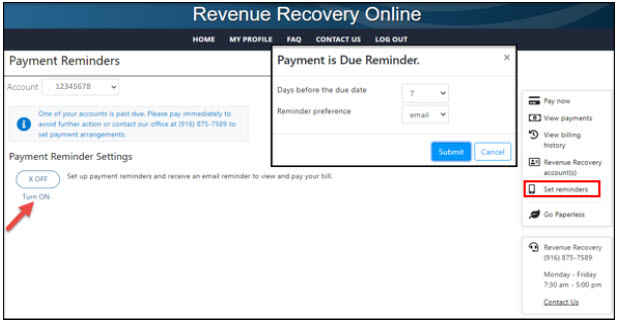
- Click the turn on button to set payment reminders
- Select how many days before the due date to receive payment reminder
- Select reminder preference
- A confirmation box appears after hitting ‘Submit’ to confirm your selection
- A follow up confirmation email is sent to the email on file confirming that payment reminders have been set with a link to the portal and Revenue Recovery contact number to call with any questions
- To turn off payment reminders, click the turn off button
- A green message appears that says ‘You have turned off Payment Reminders’
Go Paperless
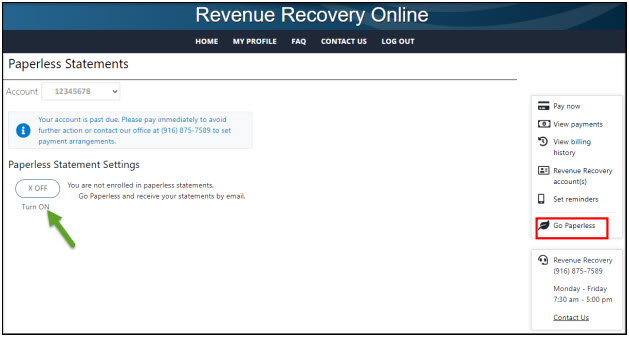
- Click the turn on button to enroll the account in paperless statements
- A message appears confirming “You have enrolled in Paperless Statements”
- A confirmation email is sent to the email on file explaining the process.
(Once enrolled in paperless, all Statements and Initial Billing Notices will no longer be mailed, an email will be sent to the email address on file when a new statement is available to view)
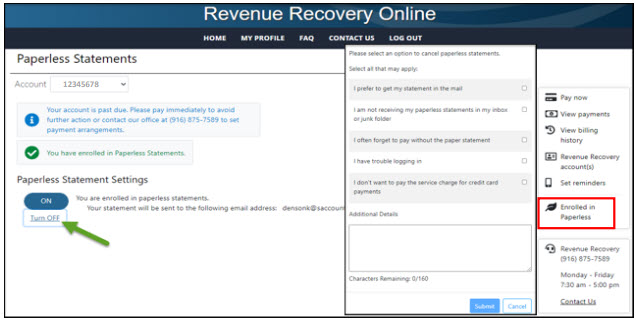
- To turn paperless billing off, click the turn off button.
- A new window will open asking to select any option that applies
- I prefer to get my statement in the mail
- I am not receiving my paperless statements in my inbox or junk folder
- I often forget to pay without the paper statement o I have trouble logging in
- I don’t want to pay the service charge for credit card payments
- A box to add additional details
- After selecting an option, a green message appears that says ‘You have turned off Paperless Statements’
- A confirmation email is sent to the address on file that says the paperless statements have been cancelled.
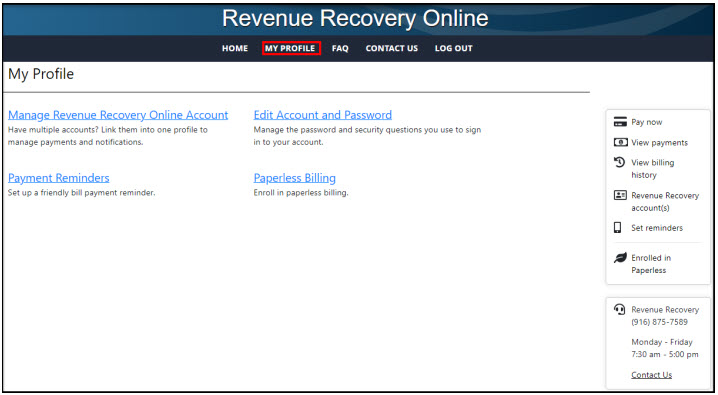
My Profile
- Manage Revenue Recovery Online Account
- Use this to link multiple accounts to your profile, or remove link to accounts
- Edit Account and Password
- Use this to change Username, Password, email address or phone number
- Payment Reminders
- To set payment reminders
- Paperless Billing
- To enroll in Paperless billing
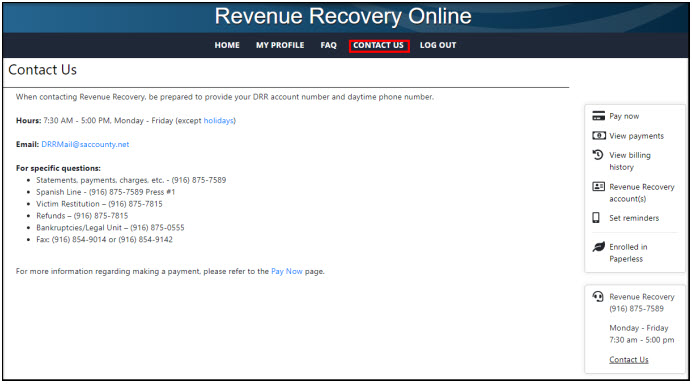
Contact Us
- Lists hours of operation
- DRR email address for correspondence
- Individual phones numbers for Collections, Spanish, Victim Restitution, Refunds, Bankruptcies/Legal Unit & fax numbers
Log Out
- Logs out of Portal & return to the Log in screen